
Snake Game Console build in C language but without graphics.h header
OS :

Version : v1.1.0
README Indonesian Version (README Versi Indonesia)
Library Requirements : Standard C Library such as..
#include <stdio.h>
#include <stdlib.h>
#include <string.h>
#include <stdbool.h>
#include <time.h>
This is the simple snake game that run on windows console/command prompt/CMD without using graphic library or graphic.h for display the graphic thing on 
The main idea is to make movement of the snake using looping and every loop, the coordinate of the snake and it’s tail is different sequencially.
This snake game is build just using the basic syntax of the C language without any special syntax from another C library.
NOTE : This snake game console actually have a little bug when generating food on random location. If you want to contribute to fix that bug and another bug while trying from source code, read the CONTRIBUTING.md file to know how to contribute to this little fun project
Random food coordinate generating bug issue
Demo Video Gameplay
Features ✔
- Move the snake using W A S D on keyboard ➡⬅⬆⬇ ⌨
- Store the history of the player including the player names and the date time achieved 💾
- Access the history even when the program has been terminated (persistence text file based) 📂
- Pause the game when anything disturb while playing ⏸
Limitations ⚠
- Unfortunately, this snake game console runs using the principle of looping and without using a graphics engine such as the
graphics.hheader, so its performance depends on CPU speed, the higher the CPU speed, the smoother the “snake” moves in the game. - This snake game only run on Windows Operating System in CMD form/console program.
Preview Images 👀
- Main Menu Main menu of the snake game console program

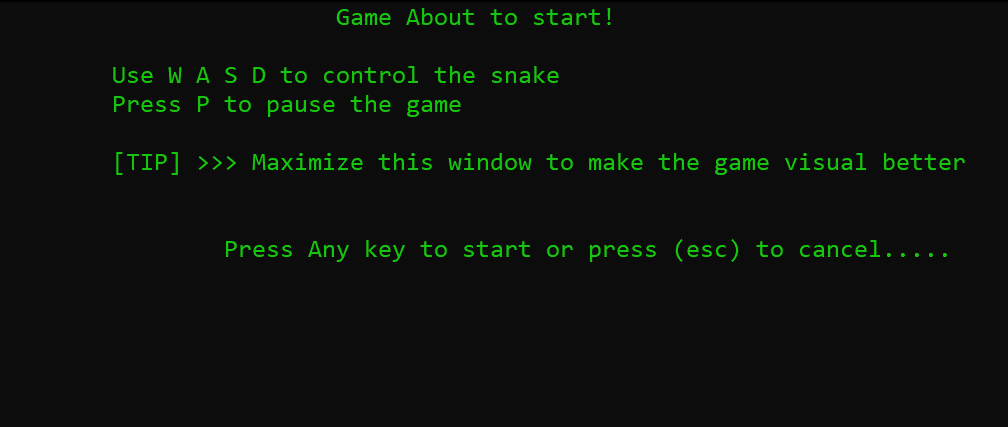
- Confirmation to play Asking for confirmation that the player really want to continue to the game
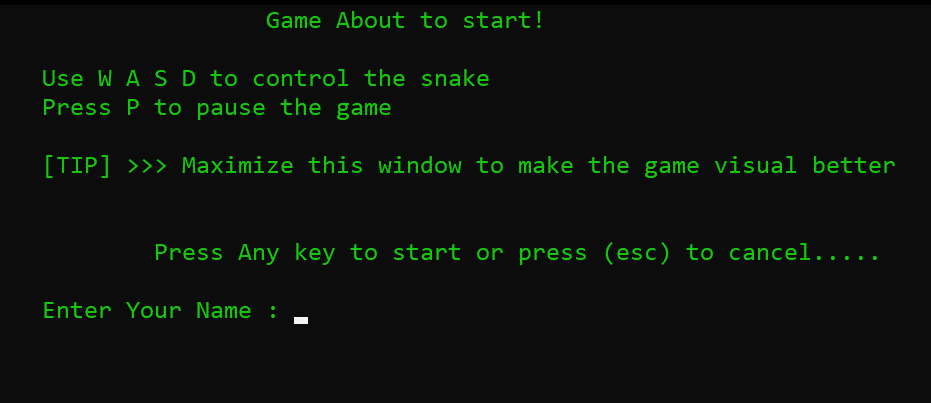
- Asking for the player name (can be random name) for storing history purpose
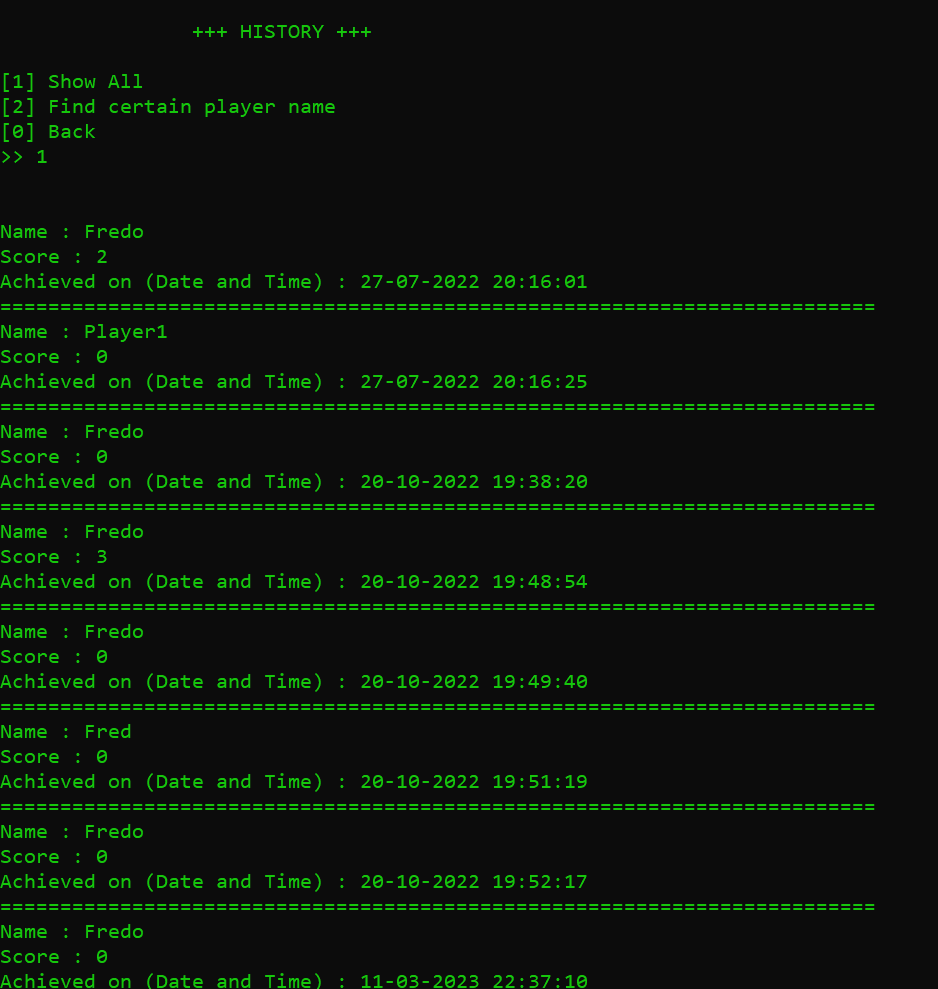
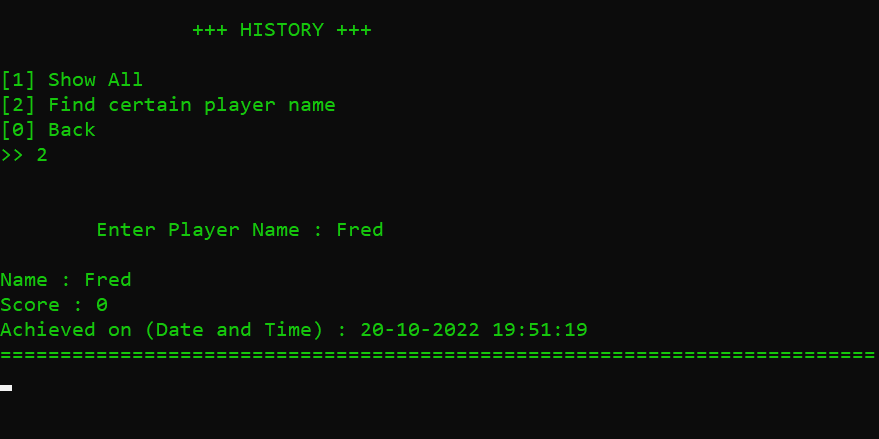
- See the History See all players history data
- Search and see the specific player history by name
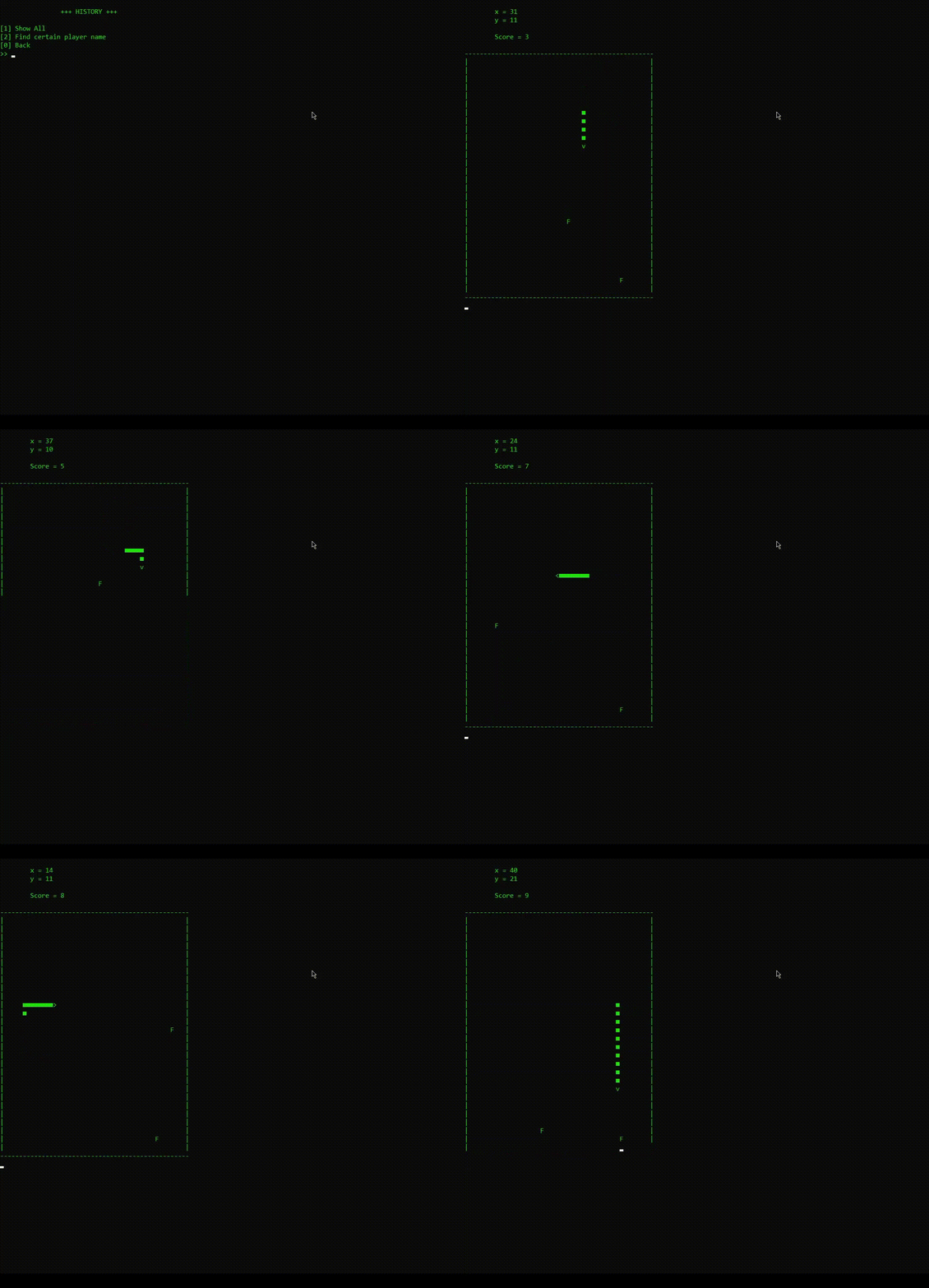
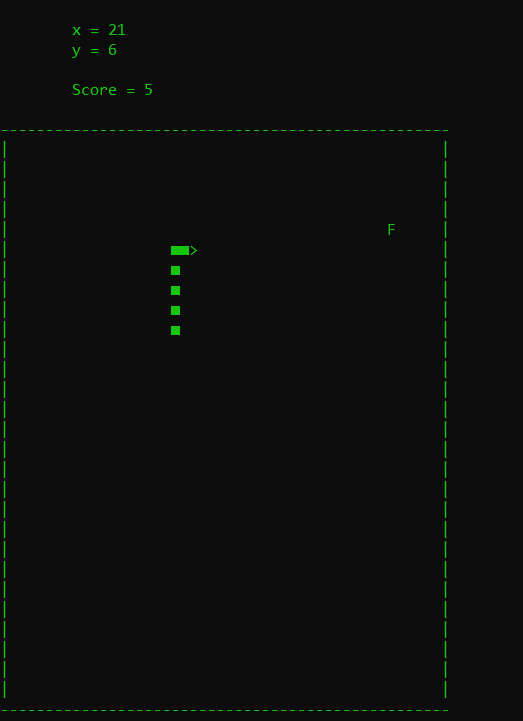
- Game Play Game Play in action
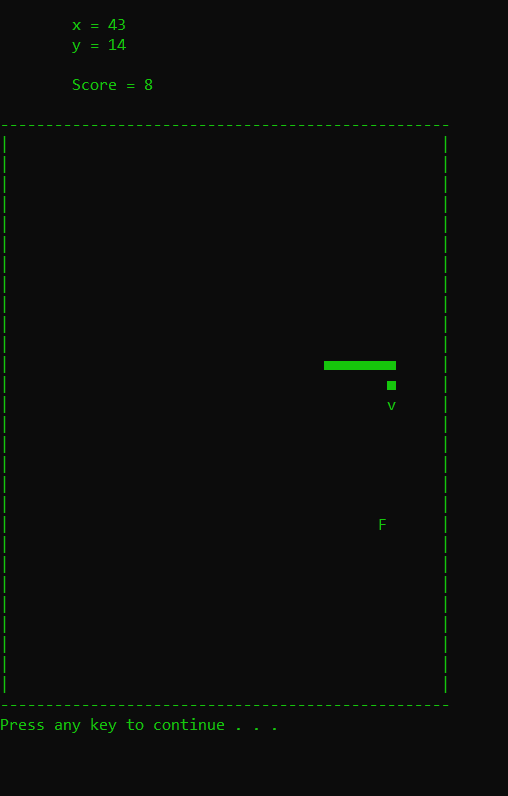
- Game Paused by pressing P key on keyboard
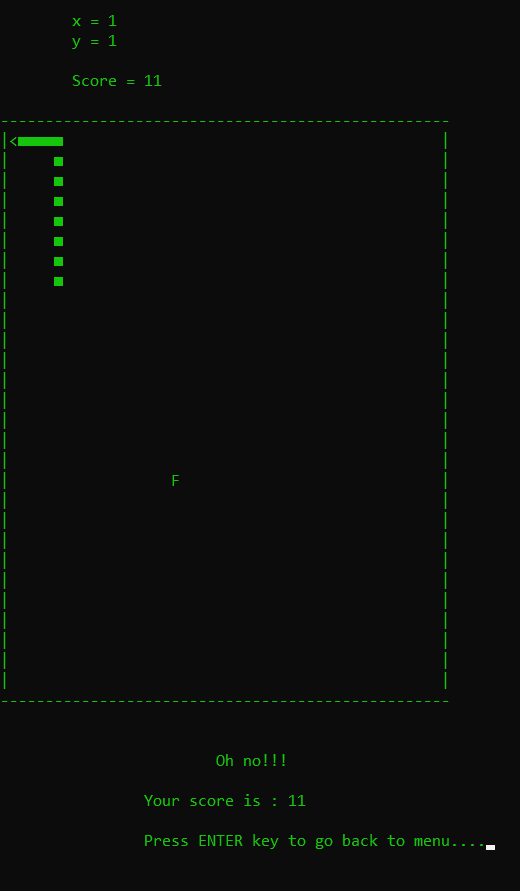
- Game Over
Build and Run the source file 🛠⚙
- Windows
If you want to run this code from text editor like VS CODE, you MUST HAVE GCC Compiler installed on your computer environment
These are couple of way to get the GCC Compiler installed in your computer :
- Installer called MinGW is pretty popular among windows users, you can directly search in google by keyword : MinGW C Compiler download OR you can click this to download MinGW and read installation instructions to get the GCC Compiler install in your computer
- Other installer is msys2 which i use in my computer, click here for the msys2 download and install instructions.
You can actually automate the download and installation using my script, click here to download the automate download script.
NOTE that not only install the GCC Compiler using one of the installer, but also configure the PATH to your windows system environment
RECOMMENDED is using IDE such as Dev C++ or Microsoft Visual Studio
- Download the source code (see the download instructions)
- Extract the zip downloaded source code to the directory that you want If you are using VS CODE, follow these instructions =====================================
- Open the CMD on your windows machine to that directory (see the shortest way to open directly from the directory)
- type
code .then press ENTER - After that, your VS CODE will be open to that directory
- Open those source files by double click it, or using CTRL + P to search and open
- Open the terminal inside your VS CODE (you can use shortcut CTRL + ` on your keyboard)
- type
gcc main.c source.c -o snakeActually thesnakecan be replace according to your preference what to name the .exe file for the output of the program. So the format is :gcc <sourceFiles sourceFiles> -o <outputName> - type
start snake.exeor./snaketo run the program - Enjoy 🙂 When compile and running from the source using Vs Code, ignore these files inside the source code folder :
  - Project1.layout
  - Project1.dev
  - Project1.exe
  - MakeFile.win
  - source.o
  - main.o
Because they are actually autogenerated from Dev C++ IDE and it’s important just for compiling inside the Dev C++ IDE.
If you are using Dev C++, follow these instructions =====================================
- Extract the downloaded source file zip
- Follow these step to open project in Dev C++ :
- Open Dev C++
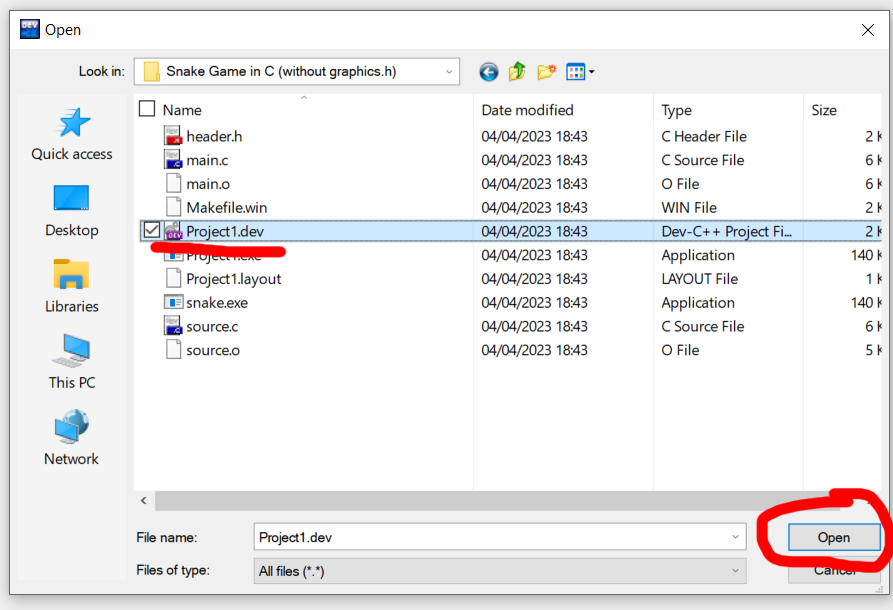
- Click on File > Open

- Navigate to the directory you’ve download and extract the source file
- Click on Project1.dev then click Open
- Click on the Compile & Run icon or press F11 for the shortcut
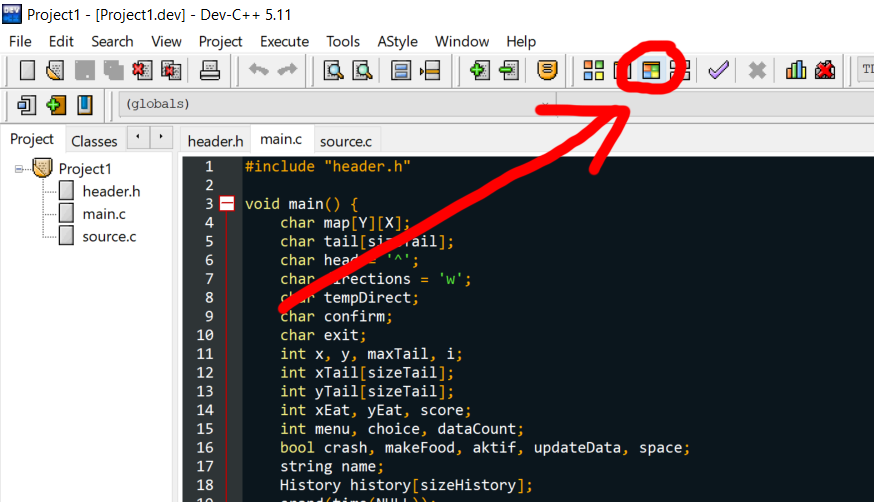
- After that, Dev C++ will compile it and automatically run the program also